Generating one-time authentication codes in Enpass
Enpass supports time-based one-time passwords (TOTP) for two-factor authentication. You can generate authenticator codes directly within Enpass, eliminating the need for separate authenticator apps.
To generate authenticator codes for an Item in Enpass:
- Open the item in Item Details view and click the edit icon on the menu bar.
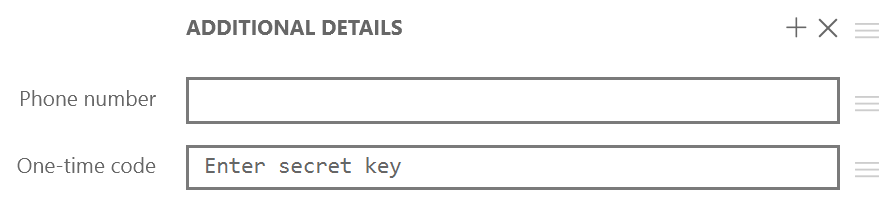
- Navigate to the Additional Details section, you will find the One-time code field.
- In the One-time code field, enter the secret key provided by the website or app.
- Click Save to save all your changes to the item.
To generate authenticator codes for an Item in Enpass:
- In the Item Details view, tap Edit at the top-right corner.
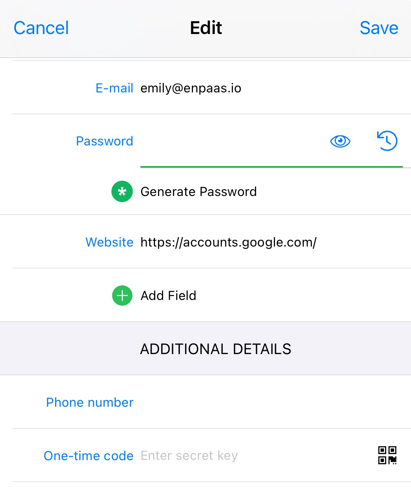
- Navigate to the Additional Details section, you will find the One-time code field.
- In the One-time code field, enter the secret key provided by the site or app, or tap the QR-code icon to scan in the key.
- Tap Save to save your changes.
To generate authenticator codes for an Item in Enpass:
- In the Item Details view, tap Edit at the top-right corner.
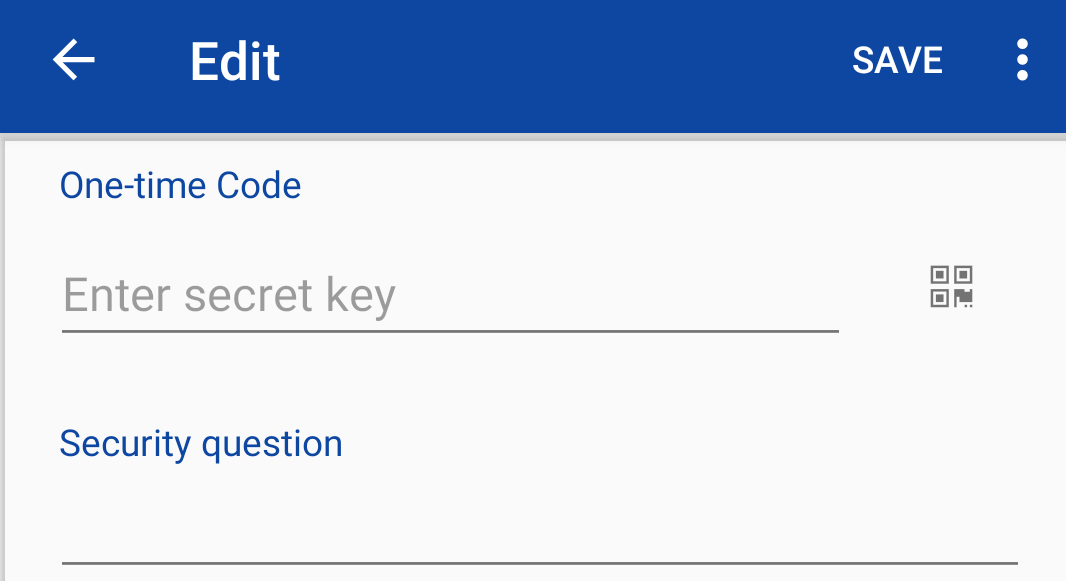
- Navigate to the Additional Details section, you will find the One-time code field.
- In the One-time code field, enter the secret key provided by the site or app, or tap the QR-code icon to scan in the key.
- Tap Save to save your changes.
Where to Find Your Secret Key : When setting up two-factor authentication on most websites, you'll be shown a QR code along with a text-based secret key. This secret key is what you'll enter into the one-time code field in Enpass.
Once configured, Enpass will automatically generate new codes every 30 seconds. You can quickly copy these codes when logging into your accounts, making two-factor authentication seamless and secure.
Related topics