Complete guide for Microsoft Entra ID administrators to enable Enpass for organizational users
Overview
When Enpass is used in an organization, users typically store their Enpass vaults in Microsoft OneDrive or SharePoint. To create Enpass vaults on OneDrive, you may need a global administrator to approve your access in Microsoft Entra ID.
This guide explains how an Entra ID Administrator can add Enpass as an Enterprise Application in Microsoft Entra ID using the official authorization flow.
Step-by-Step Instructions
-
Click the Authorization Link
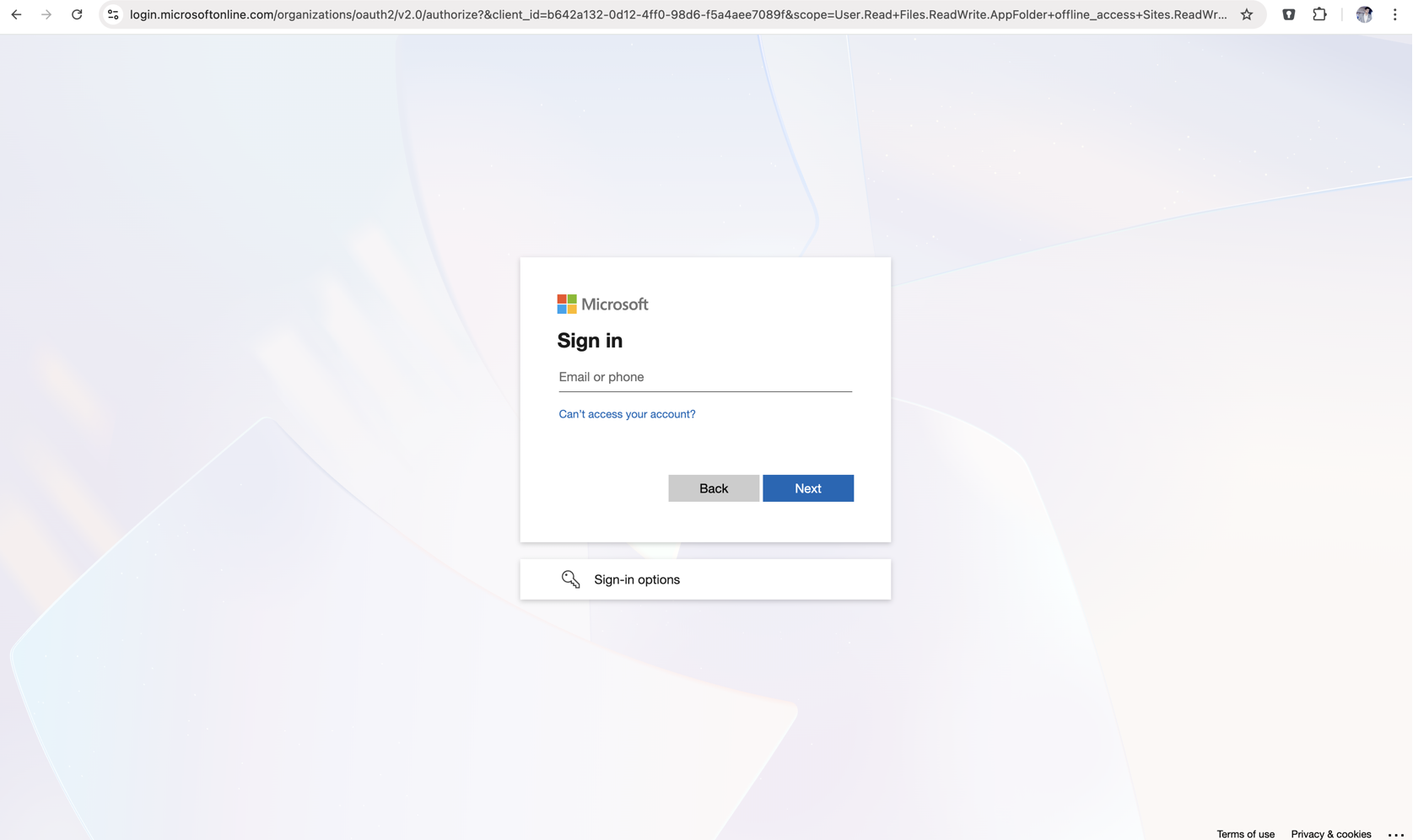
Use the following Microsoft authorization link to begin the admin consent flow. This is the same link users see when they click “Connect to OneDrive” inside the Enpass app.
-
Authenticate with Admin Account
- Sign in using your Microsoft Entra ID administrator account
- Select the correct organizational account if prompted
-
Grant Consent
On the permissions consent screen, select the option to provide consent on behalf of your organization, granting access to all users in the tenant.
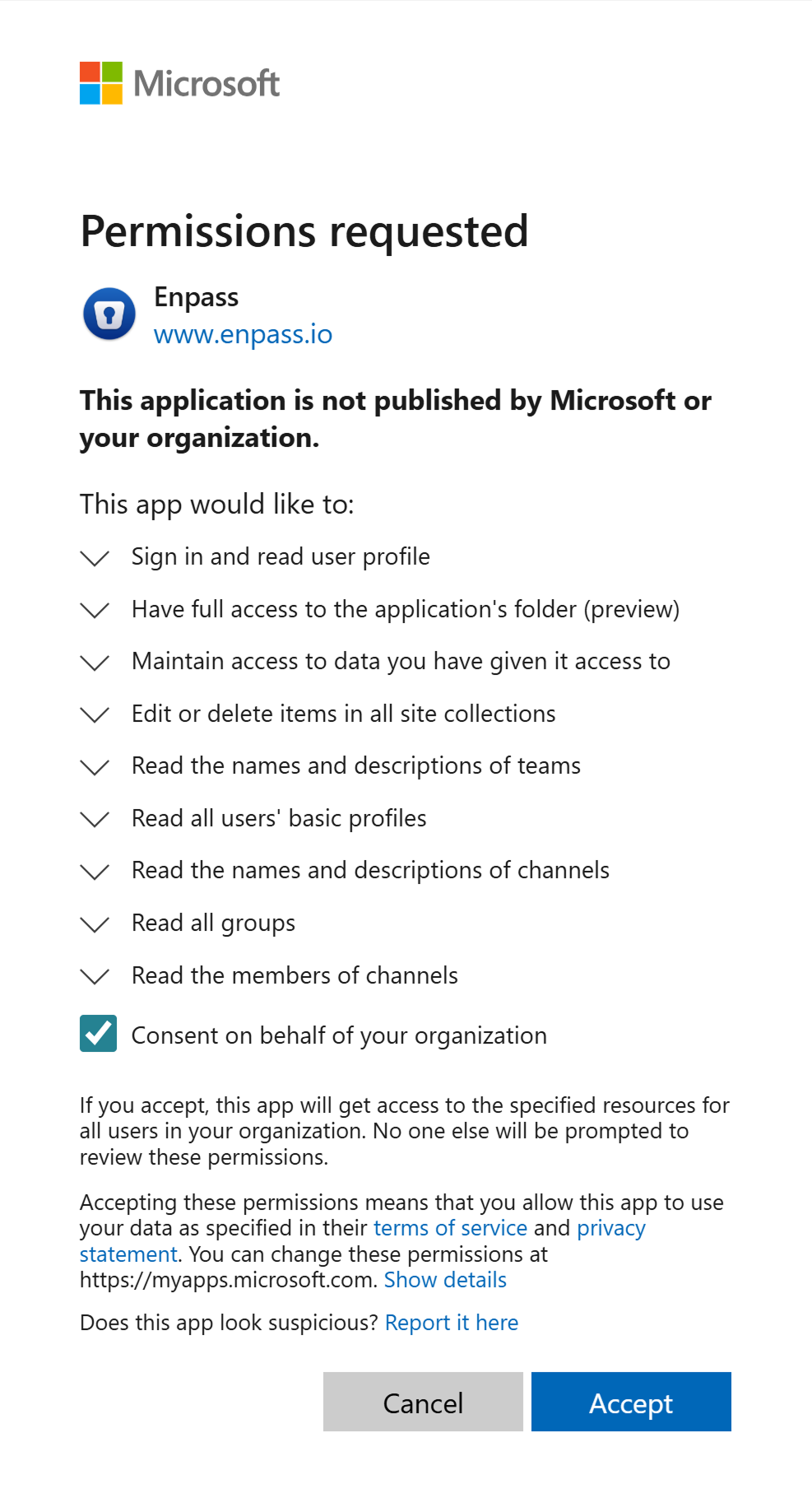
Admins can later restrict or expand access to specific users from Entra ID → Enterprise Applications.
-
Complete Authorization
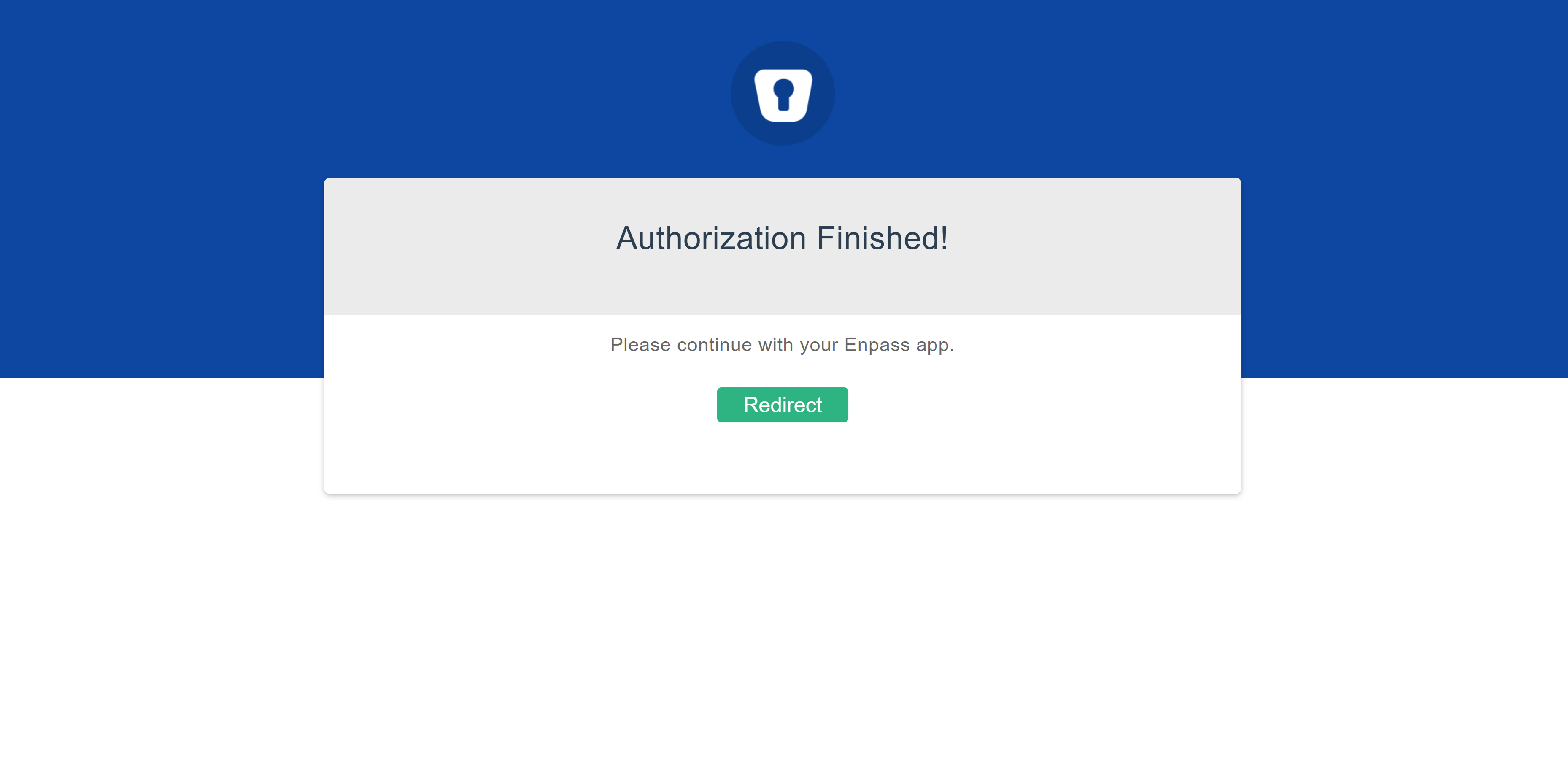
- After consent, you will see “Authorization Finished”
- Close the browser window
Check Connection Status in Enpass
Once Enpass appears under Enterprise Applications. Administrators can verify whether Enpass has been successfully added to Microsoft Entra ID and connected correctly by using the Check Status option in the Enpass Admin Console.
- Log in to the Enpass Admin Console by opening it in your web browser and signing in with your administrator account.
- From the left-hand navigation menu, click Focus Actions.
- Under Essential actions to enable Enpass for all users, locate the card titled Add
Enpass to Enterprise Apps.
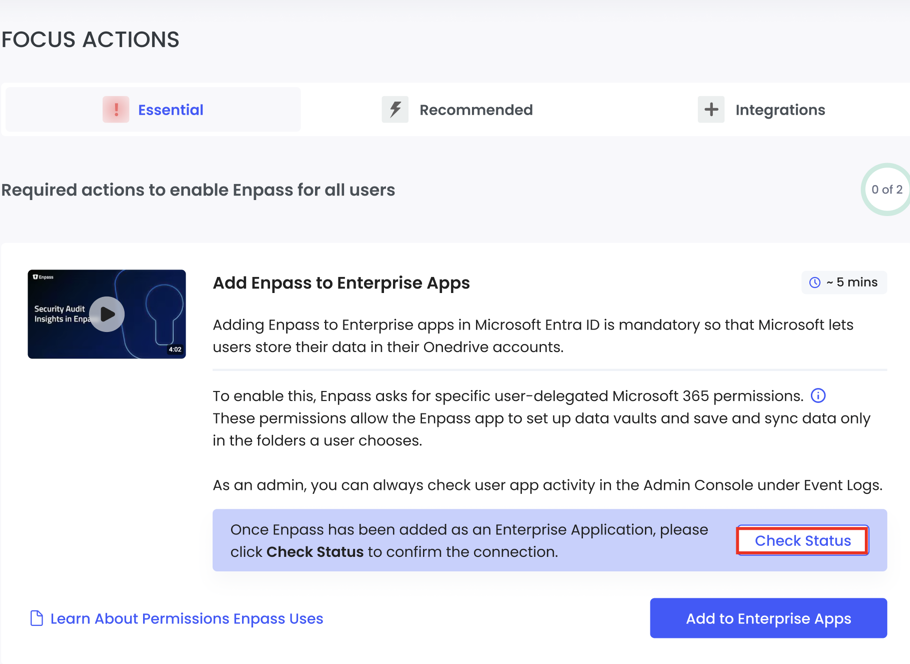
- Click the Check Status button on the right side of the card.
Your organization is now ready to use Enpass with Microsoft OneDrive.
Microsoft Permissions Explained
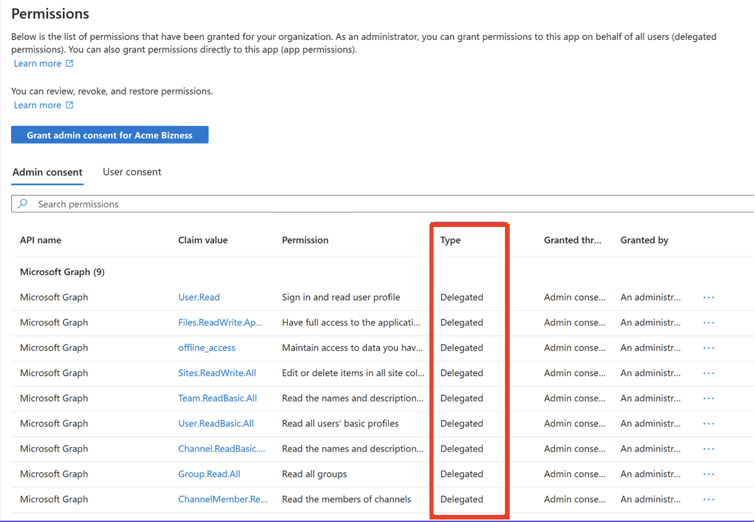
Enpass uses delegated Microsoft permissions, meaning all actions occur only on behalf of the signed-in user.
Required Permissions
| Permission | Details |
| User.Read | Sign in and read the user’s profile To get the basic information corresponding to users such as email, displayName, principalName, and userID for the team account. |
| Files.ReadWrite.AppFolder | Have full access to the application’s folder To access, create, update and delete the primary vault of the user, created inside the Enpass private App folder on OneDrive. |
| offline_access | Maintain access to data you have given it to access To access data even when the user is not online i.e. not browsing OneDrive/Microsoft in browser. |
| Sites.ReadWrite.All | Edit or delete items in all sites collection To access, create, update and delete the vaults on the user’s OneDrive and SharePoint sites. |
| Team.ReadBasic.All | Read the names and descriptions of teams To list the teams while creating vaults for teams. |
| User.ReadBasic.All | Read all users' basic profiles To share vaults with a particular user |
| Channel.ReadBasic.All | Read the names and descriptions of channels To list the channels the while creating vaults for teams. |
| Group.Read.All | List groups and read their properties. To list the group users the while creating vaults on SharePoint sites. |
| ChannelMember.Read.All | Read the members of channel To list members of the Teams channel while managing access of shared vault. |
All these permissions are delegated permissions. All MS Graph APIs will be executed by app
on behalf of the signed-in user. The access token of user only remains within the local app database, encrypted
with the master password.
It is never stored or synced to any server. Hence, there is no risk associated with a server breach. Enpass
application never scans your drive automatically, all operations are either performed on application private
folder (OneDrive>Apps>Enpass) or the OneDrive/SharePoint folder selected by the user via a folder browser.
Related topics
- Getting started with Enpass Admin Console
- Managing policies in Enpass Admin Console
- Admin Console settings
- Enpass Admin Console Billing