Admin Console Dashboard
Enpass Deployment and Adoption Overview
The Admin Console Dashboard gives administrators a centralized view of their organization’s Enpass deployment. It helps them track user onboarding, understand product adoption, and monitor active usage across teams.
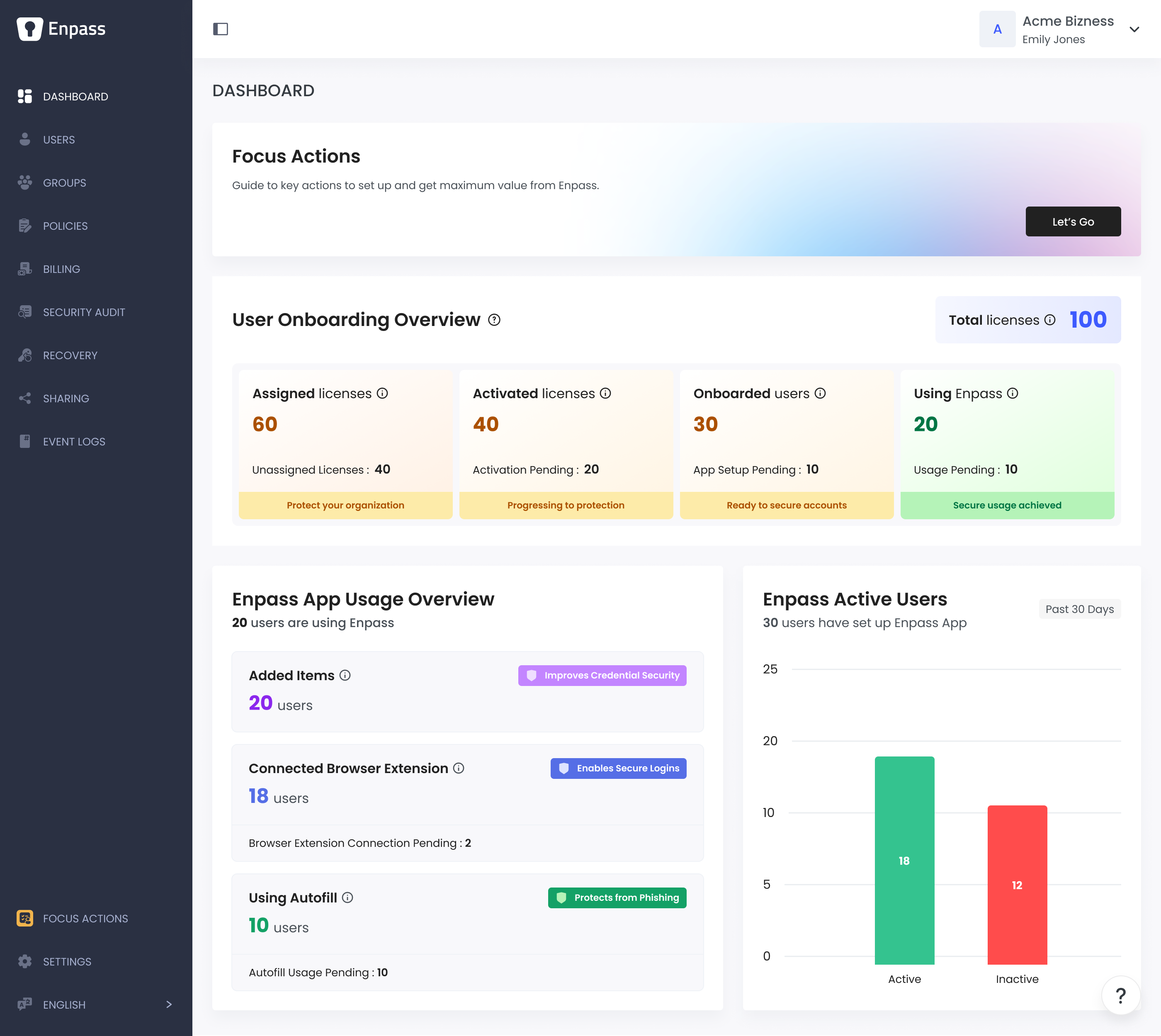
Dashboard Overview
When you first access the Admin Console, the Dashboard serves as your central hub for monitoring three key areas:
Focus Actions
The Focus Actions banner provides structured guidance by bringing all rollout steps and resources together in one
place, helping administrators deploy Enpass across the organization. It guides setup of security controls, usage
visibility, and integrations with user directories (such as Microsoft Entra ID) and other supported services.
User Onboarding Overview
This allows administrators to track users across the full deployment lifecycle, from license assignment through active usage, while monitoring total licenses and stage-wise progress.
Enpass App Usage Overview
This section summarizes how Enpass is being used across your organization. See how many users have added items, connected the browser extension, and used autofill at least once. Use these metrics to assess engagement and spot gaps in usage, and focus enablement efforts where they are most needed.
Enpass Active Users
View active versus inactive users over the past 30 days with visual charts.
User Onboarding Overview
This card provides a snapshot of your organization’s Enpass deployment, showing how users are progressing through the onboarding process. Tracking these stages helps administrators monitor adoption, identify bottlenecks, and ensure users are successfully set up.
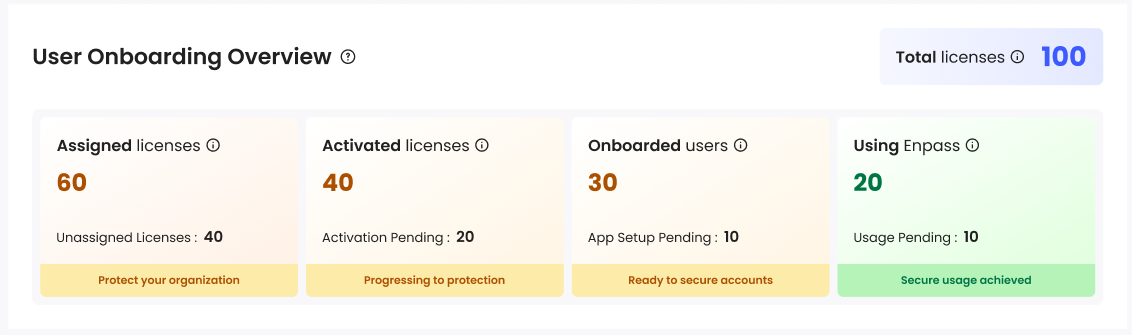
Onboarding Stages
Each stage represents a key step in a user’s journey from license assignment to active usage.
| Stage | What It Means |
| Assigned | Assigned Licenses: It shows the number of licenses the admin has assigned to users. Unassigned Licenses: It shows the remaining number of licenses not yet assigned. Click on it to see the list of users and follow up with them. |
| Activated | Activated licenses: It shows how many users have activated the Enpass app using their email. Activation Pending: It Shows how many assigned users are still pending activation. Click on it to see the list of users and follow up with them. |
| Onboarded | Onboarded Users: This shows the number of users who have created their vault among activated users. App Setup Pending: It shows the number of users who have activated Enpass but have not yet set up their vault. Click on it to see the list of users and follow up with them. |
| Using Enpass | Using Enpass: This shows the number of users who have added items to Enpass and started using it for work. Usage Pending: It shows the number of onboarded users who have not added any items yet. Click on it to see the list of users and follow up with them. |
Viewing Pending Users
The pending counts (Unassigned Licenses, Activation Pending, App Setup Pending, Usage Pending) appear as hyperlinks. Click any of these links to view the detailed list of users in that particular group.
Each pending user page displays:
- The total count of users at that stage
- A searchable table with user details
- Reminder emails sent count for each user
- Options to send reminder emails
You can search for specific users by name or email, filter by reminder count, and select multiple users to send them reminder emails together.
Enpass App Usage Overview
This section provides insight into usage patterns of users in the Using Enpass stage. These metrics help administrators understand how users are incorporating Enpass into their daily workflows.
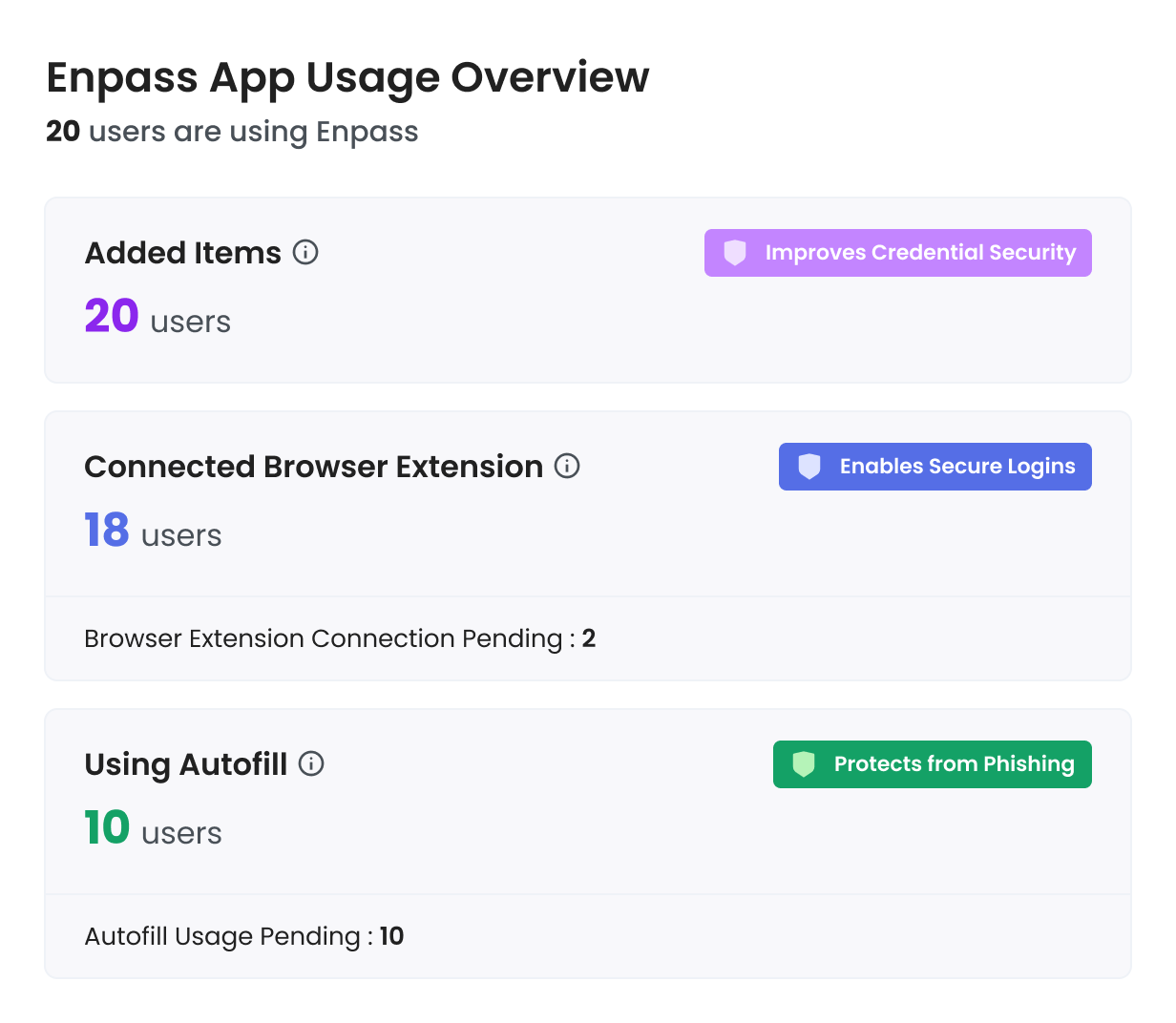
Feature Adoption Metrics
Added Items
Represents the number of users who have added at least one item beyond the default sample items, indicating that they have started using Enpass to store their data.
Connected Browser Extension
This chart shows the number of users who were active at least once within the selected time period across the organization. User activity is recorded only after the Enpass app is paired with the browser extension.
A Browser Extension Connection Pending count is displayed for users who have not yet completed this setup. Click on it to see the list of users and follow up with them.
Using Autofill
Indicates the number of users who have used the autofill feature at least once, either through the browser extension or the mobile app. Autofill usage reflects how deeply Enpass is integrated into users’ authentication workflows.
An Autofill Usage Pending count is shown for users who have not yet used this feature. Click on it to see the list of users and follow up with them.
Sending Reminder Emails
When users haven't completed their onboarding steps, you can send them reminder emails to help them move forward. The reminder email feature is available on all pending user pages.
How to Send Reminders
- Click on any pending count link to open the user list.
- Select users by checking the boxes next to their names, or use "Select all" to choose all users.
- Click "Reminder email preview" to review the message content.
- Click "Send test email to me" if you want to receive a sample first.
- Click "Send reminder" to send the emails to selected users.
Tracking Reminder Emails
The "Reminder Emails Sent" column shows how many reminder emails have been sent to each user. This count includes both automatic reminders sent by the system and manual reminders sent by administrators.
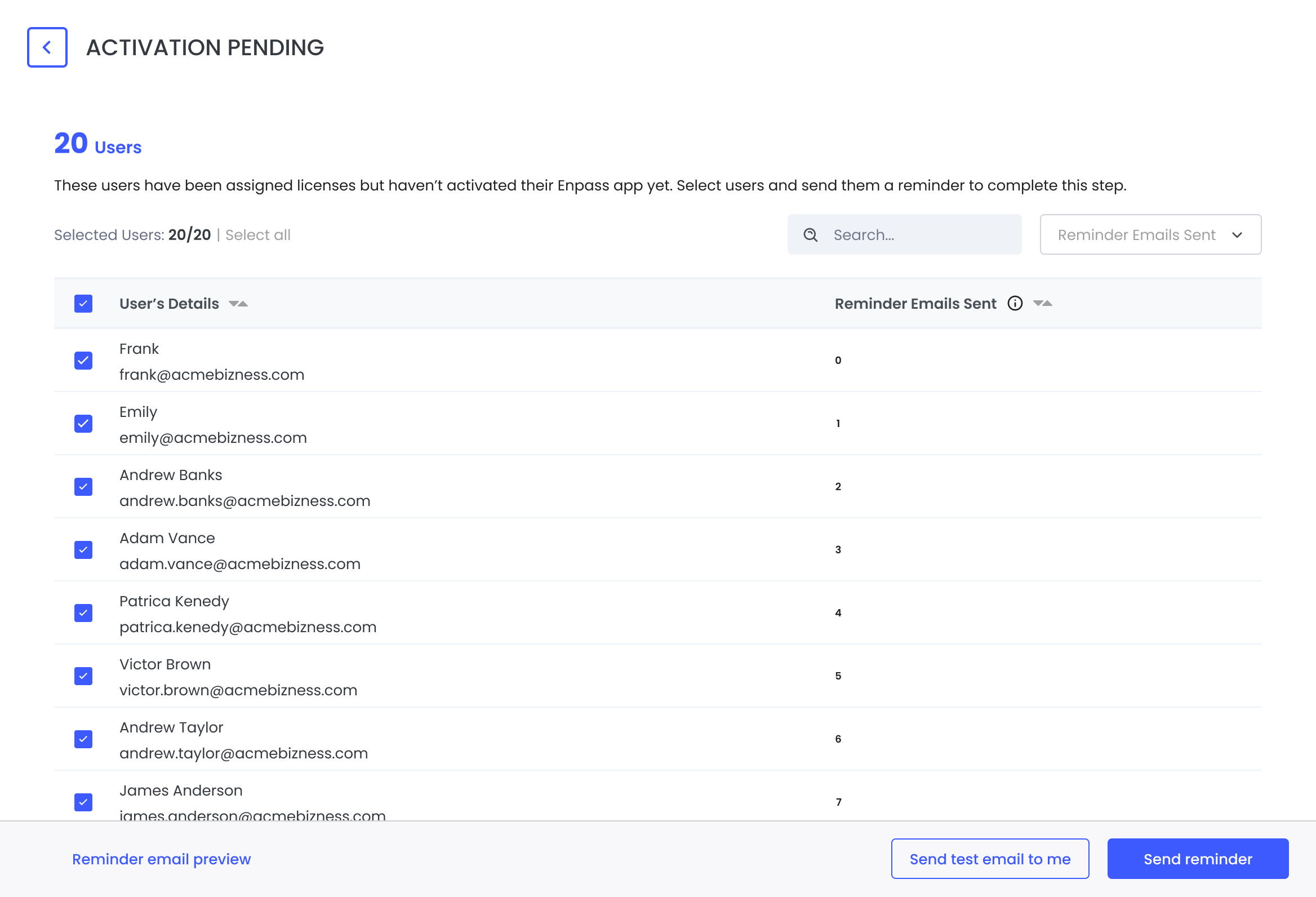
You can filter users based on the number of reminders they've received: 0, 1, 2, 3, or more than 3. This helps you identify users who may need additional support or a different approach.
Note: When you send a manual reminder, the system automatically skips the next scheduled automatic reminder to prevent overwhelming users with too many emails.
Enpass Active Users
This chart shows the number of users who were active at least once across the organization over the past 30 days. It enables quick identification of active users versus those who have not used enpass app in last 30 days.
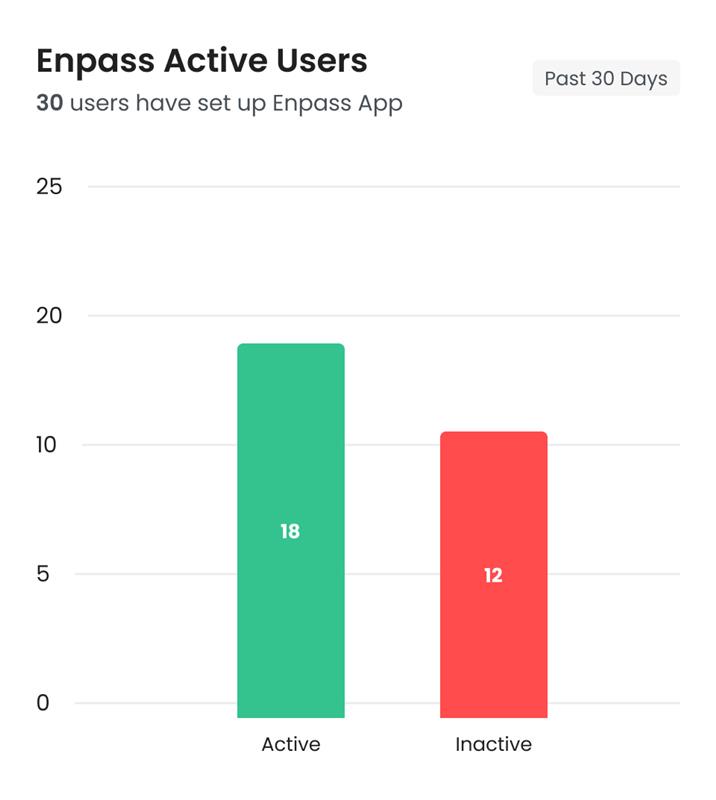
Chart Breakdown
The chart groups onboarded users into two categories based on recent activity:
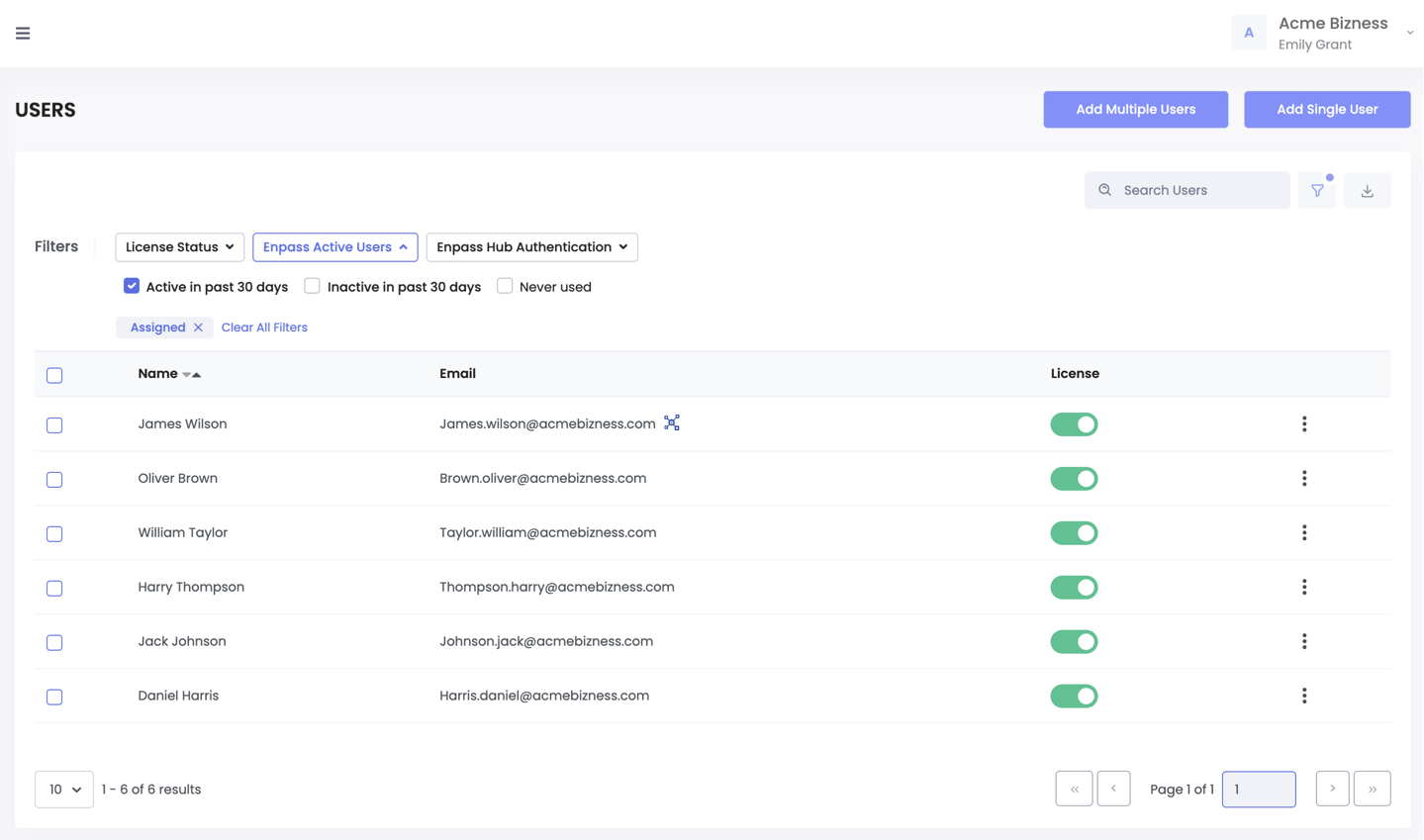
- Active Users
Users who have set up their Enpass app and launched the Enpass app on any device or autofill using enpass (mobile or desktop) at least once in the last 30 days.
- Clicking the Active Users bar opens the Users page filtered to show recently active
users.
- Inactive Users
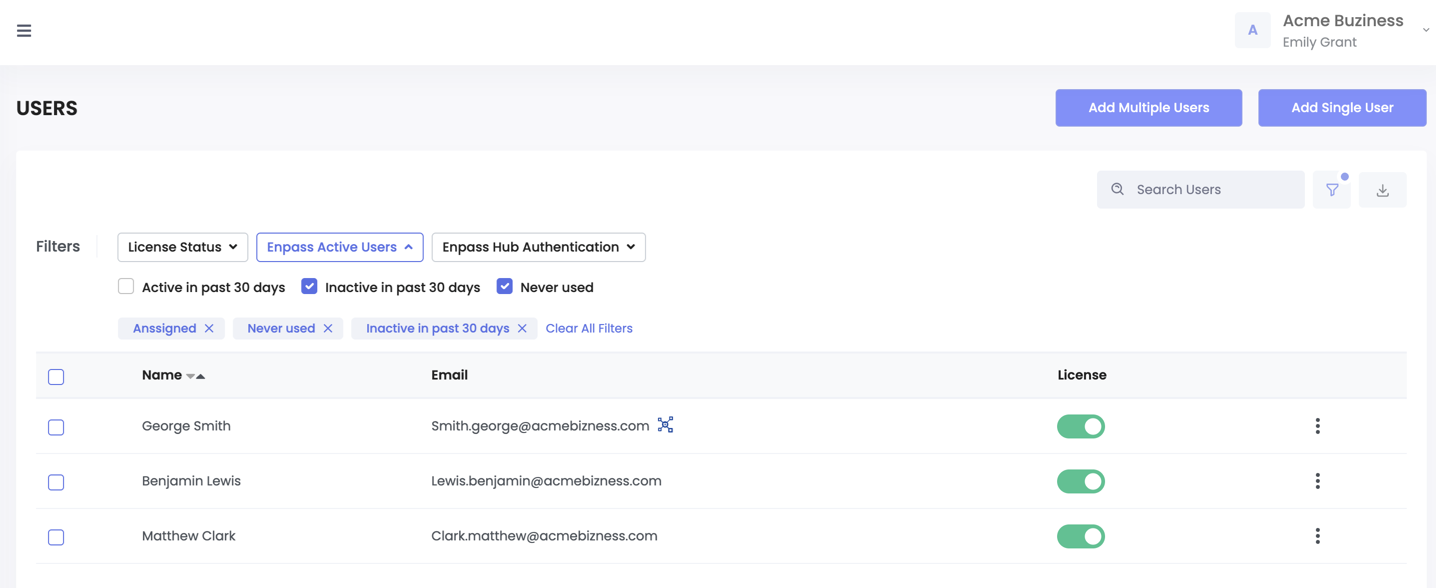
Users who have set up their Enpass app but have not opened or used the Enpass app on any device in the last 30 days.
- Clicking the Inactive Users bar opens the Users page filtered to show inactive users, allowing
administrators to take corrective actions such as user outreach, training, or access validation.
Related topics
- Getting started with Enpass Admin Console
- Managing policies in Enpass Admin Console
- Admin Console settings
- Enpass Admin Console Billing