Admin Console login security in Enpass Business
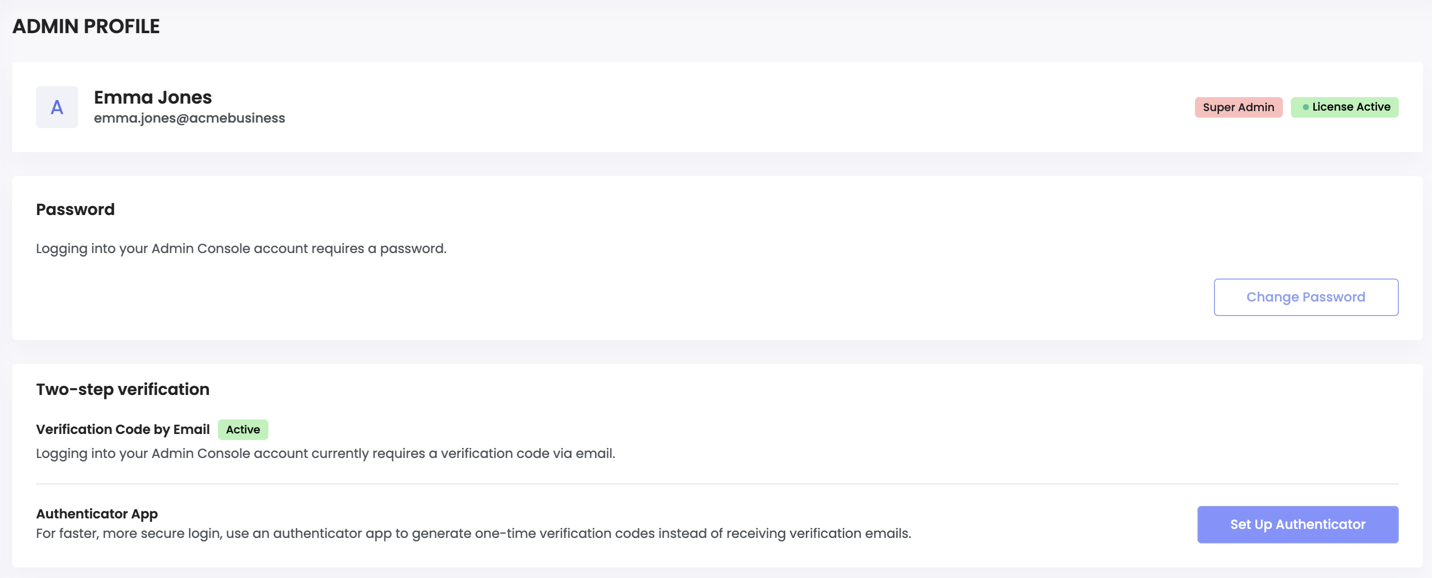
By default, a verification code sent to your work email is required for logging into the Admin Console. You can update your own Console login to require a password before the verification code. For stronger security and faster access, once a password has been added, you have the option of requiring an authenticator code (TOTP) instead of your password.
To require a password, as well as a verification code, for your own Admin access:
- In the top-right corner of the Admin Console, click the User Menu and select Profile.
- In the Admin Profile section, click Change Password.
- Enter and confirm your password.
- Click Set Password.
To require an authentication code for your own Admin access, instead of a password or emailed code:
NOTE: Your account must already have a password to enable the authenticator option.
- In the top-right corner of the Admin Console, click the User Menu and select Profile.
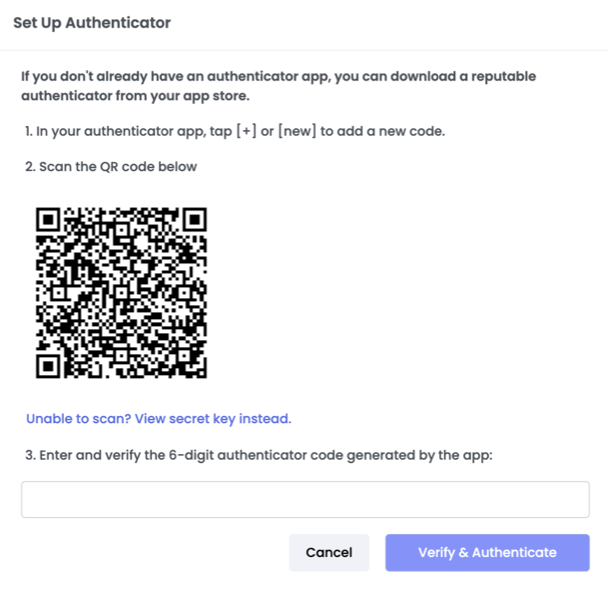
- In the Admin Profile section, click Set Up Authenticator.
- In the overlay, follow the instructions for adding a new code.
- Copy or download the provided backup codes for emergency access, and store them somehere secure.
- Click Done.
To login with an emergency backup code:
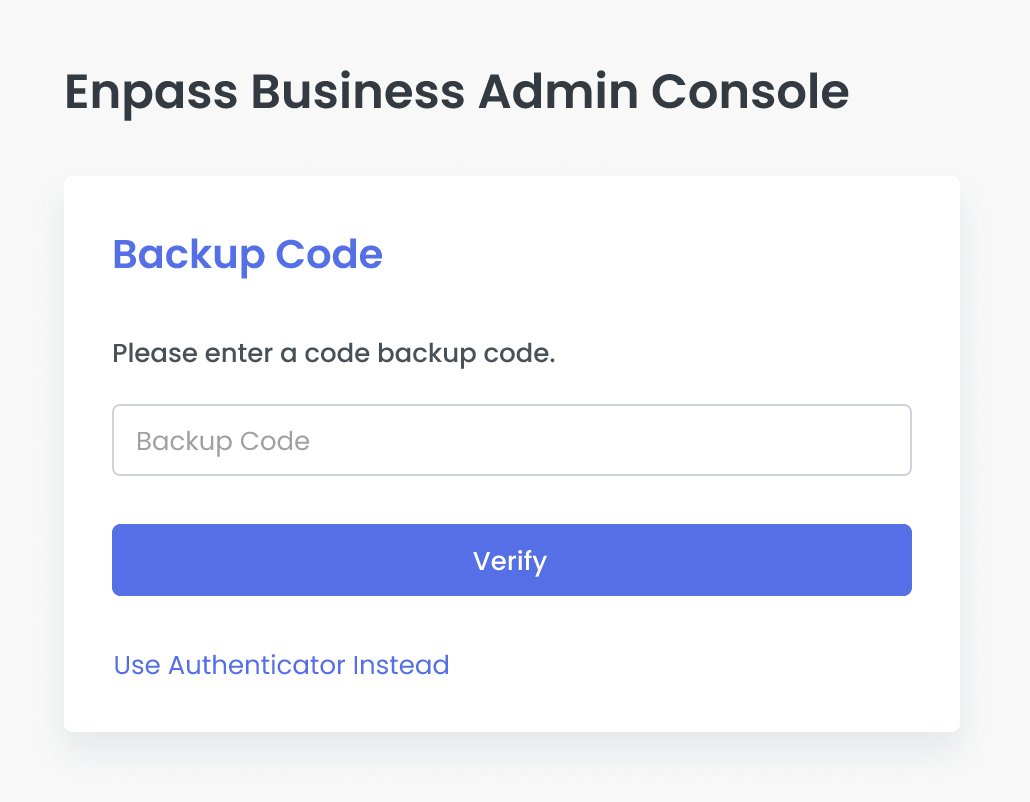
- On the Admin Console login screen, click Use Backup Code Instead.
- Enter your backup code, and click Verify.
- Retrieve and enter the one-time code sent to your email to complete your login.
To check the status of your backup codes:
- In the top-right corner of the Admin Console, click the User Menu and select Profile.
- In Admin Profile > Two-step verification, look for Regenerate Backup Codes to see the number of remaining backup codes displayed alongside in parentheses.
To generate new backup codes:
- In the top-right corner of the Admin Console, click the User Menu and select Profile.
- In Admin Profile > Two-step verification, click Regenerate Backup Codes.
- In the overlay, follow the instructions for generating new backup codes.