Configure Tines to Receive Event Logs
Create a New Story
- Log in to your Tines Dashboard.
- Click Create a new Story to set up event ingestion.
- Edit the newly created Story and add the following components:
-
Add Webhook Component
- Click Add Component and select Webhook.
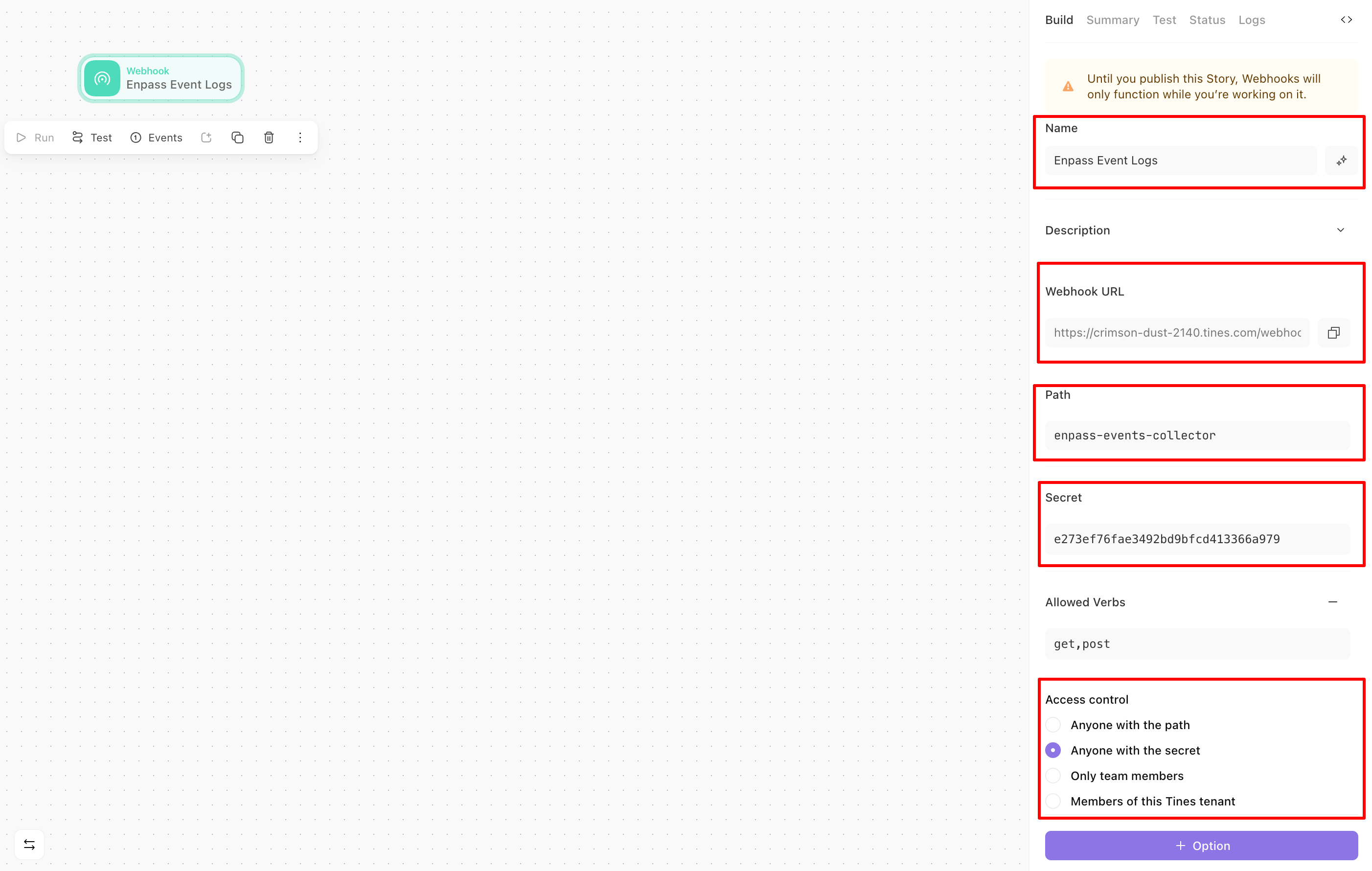
- Enter a descriptive name for this component (optional, as it's pre-filled).
- Configure the Path parameter (e.g., enpass-events-collector).
- Copy the Webhook URL carefully:
- The path you entered will be automatically appended to the URL
- Tines can send tokens via URL (default) or Authorization header, if the token is in the URL, header configuration will be ignored.
Do NOT copy the secret token that appears after your path in the URL.
-
Add a Secret Token:
- Change the pre-filled value to create your own Secret token
Save this token securely as you'll need it for the Admin Console setup in Step 5
- Click the + Option button and select Access Control.
- Set the access control to Anyone with the secret.
- Click Add Component and select Webhook.
-
Add Event Transform Component
- Click Add Component and select Event Transform.
- Connect it to the Webhook component by dragging a line from the Webhook tile to the Event Transform
tile.
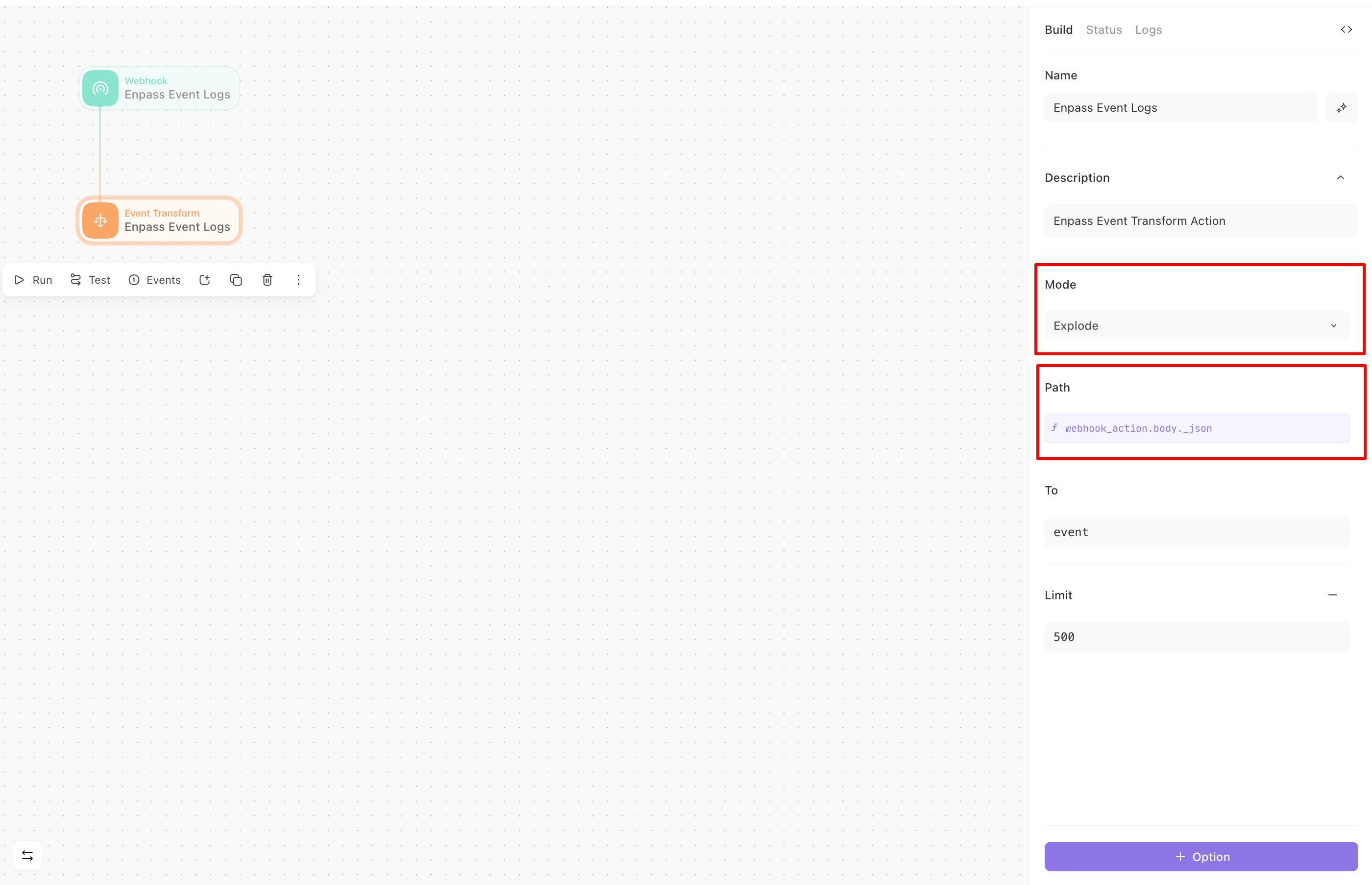
- Enter a descriptive name for this component (optional, as it's pre-filled).
- Configure the following settings:
- Mode: Select Explode
- Path: Enter <<webhook_action.body._json>>
- To: Enter the key name for event data in the final JSON (e.g., event or log)
- Limit: Set to at least 500 (recommended for handling bulk events)
- Click Run to enable the components.
Check the Status and Logs panel on the right for webhook events. Status information will appear once Enpass begins sending events to this endpoint.