Checking a user’s Enpass Business and Enpass Hub status in the Admin Console
Admins can check each user’s Enpass Business status — the status of their authentication with the Enpass Hub — from the Users section of the Enpass Admin Console.
To check a user's status in the Enpass Admin Console
Click three dots (⋮) beside a user’s name, and select View details.
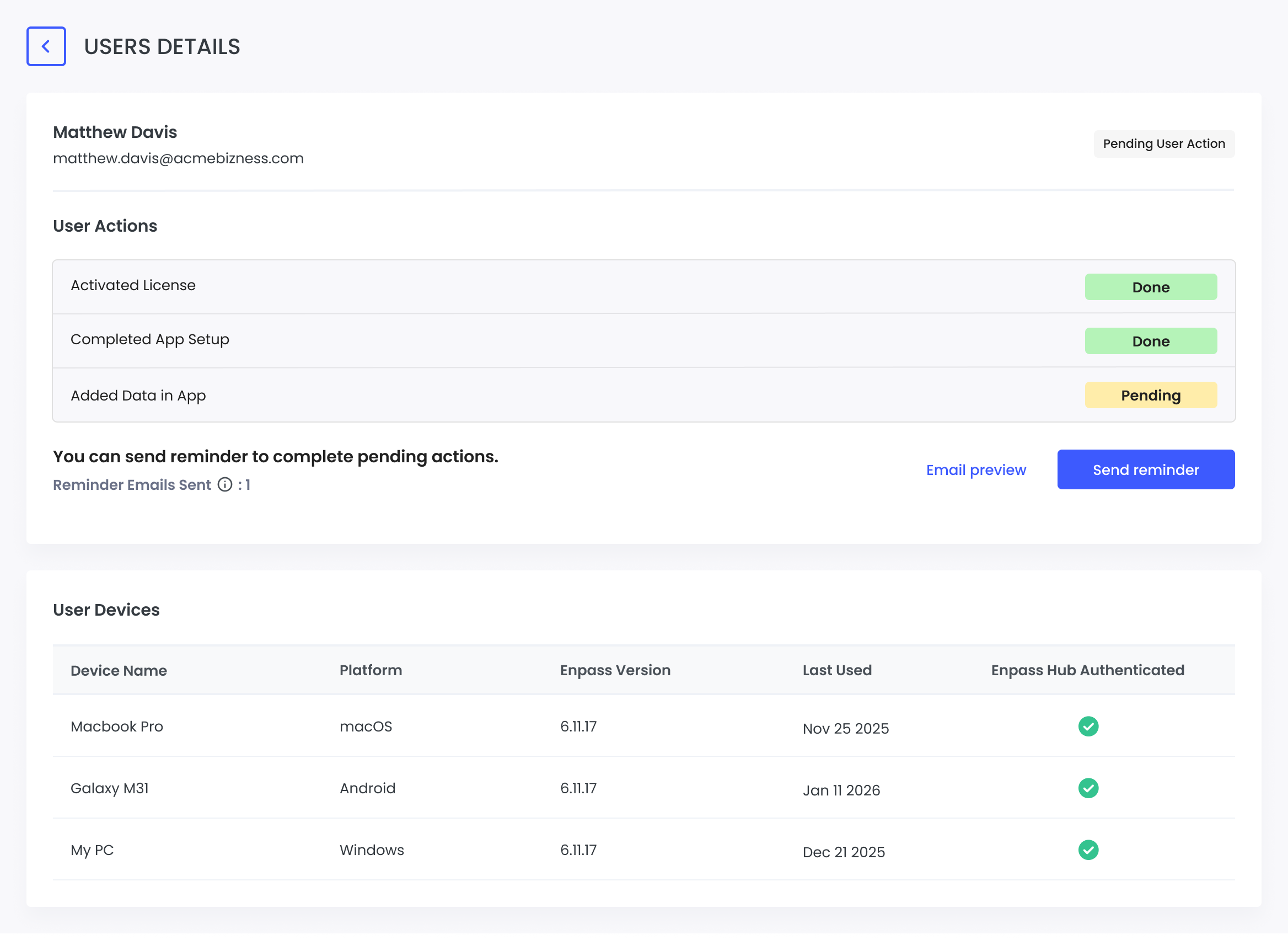
On the User Details page, you will find:
User Information
- User's name, email address and user status.
- Highlights the user’s stage in the onboarding process.
User Actions
This section displays the user's onboarding progress:
- Activated License - Shows whether the user has activated their license.
- Completed App Setup - Indicates if the user has completed setting up the Enpass app.
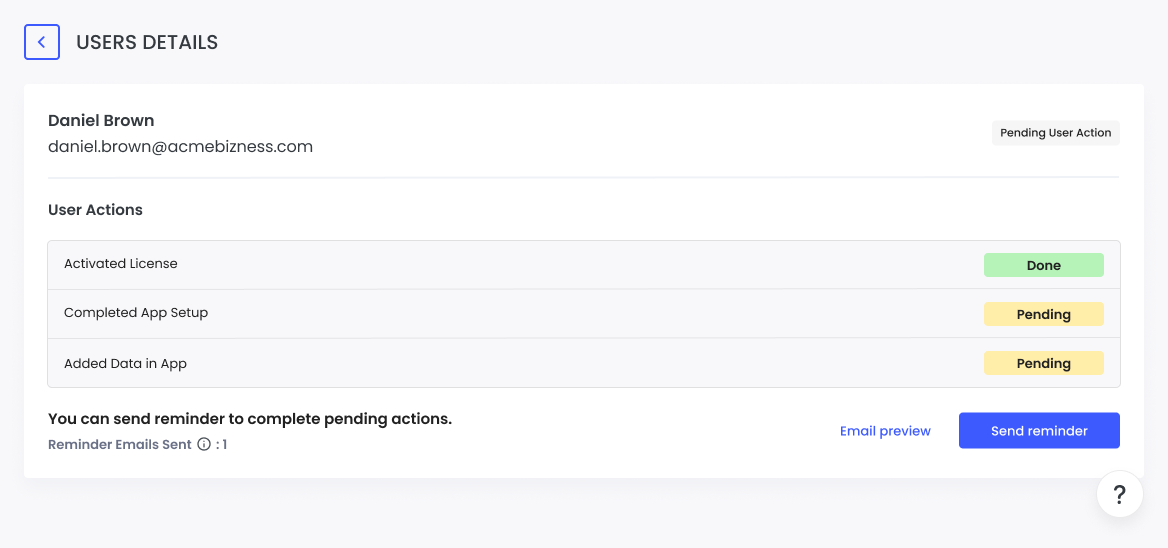
- Added Data in App - Shows whether the user has started using the app by adding data.
For users with pending actions, you can:
- View how many reminder emails have been sent
- Click "Email preview" to review the reminder message
- Click "Send reminder" to prompt the user to complete pending actions
Device Information Table
A table showing all devices where this user has activated Enpass Business:
- Device Name - The name of the device (e.g., Macbook Pro, Galaxy M31, My PC)
- Platform - The operating system (macOS, Android, Windows)
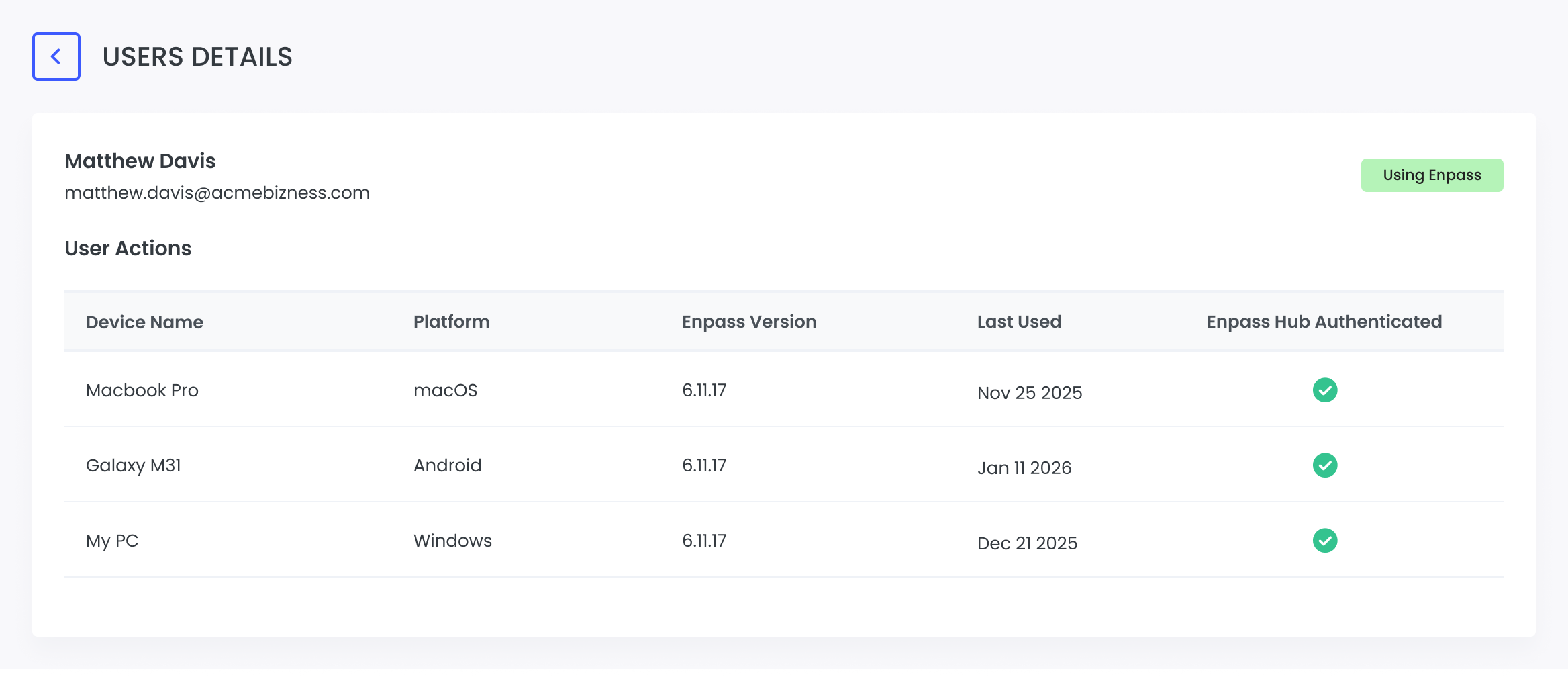
- Enpass Version - The version of Enpass installed on the device.
- Last Used - The date when the device last accessed Enpass.
- Enpass Hub Authenticated - Shows whether each device has been authenticated with the Enpass Hub.
Reset Enpass Hub Keys
- If there is a conflict in the keys that identify the user's Enpass app to your Hub, a "Reset Enpass Hub keys" button will be available at the top right of the page.
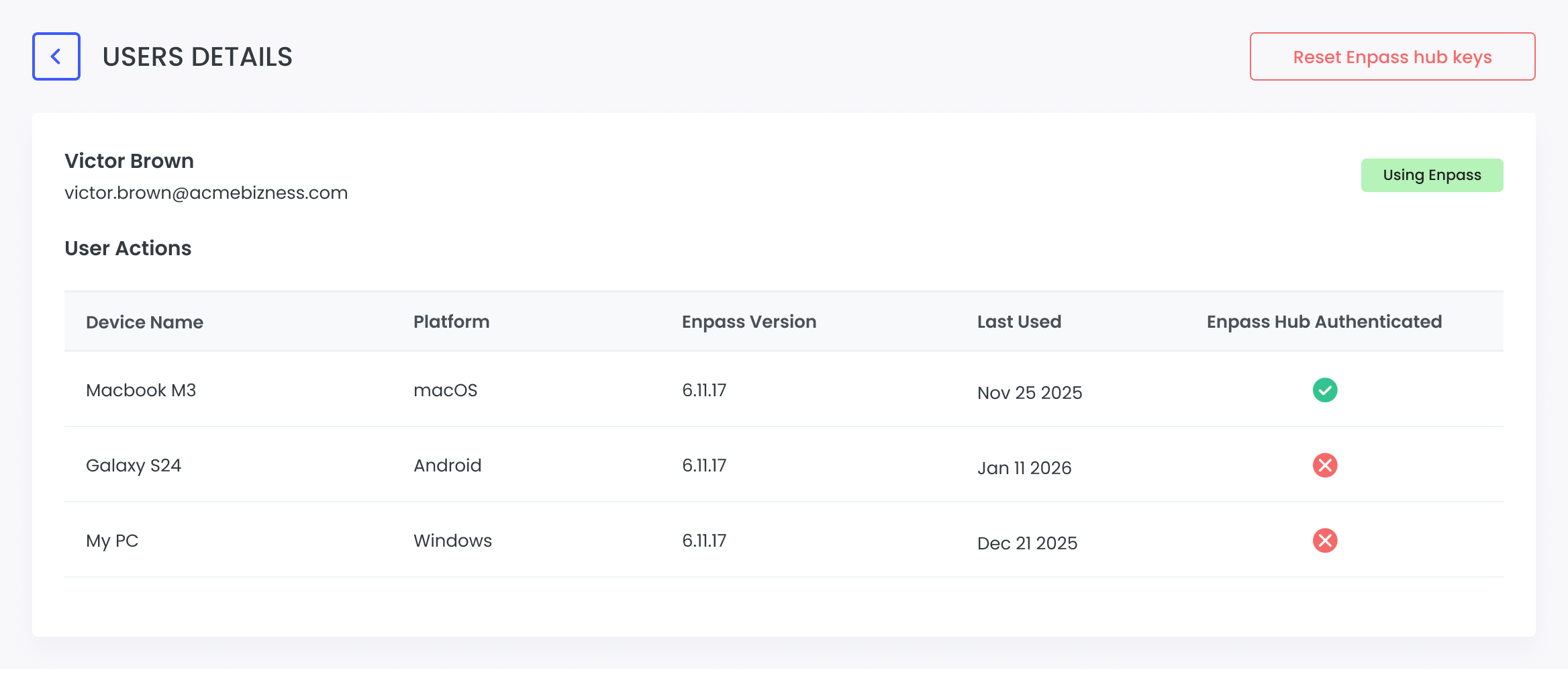
- Clicking this button will erase these keys, after which the user must re-launch their Enpass app so it can reconnect with the Enpass Hub, creating new keys
Related topics