Enpass Home
Enpass helps you strengthen your data security by monitoring for unsafe passwords, and alerting you of data breaches that may put your accounts at risk.
Home Page
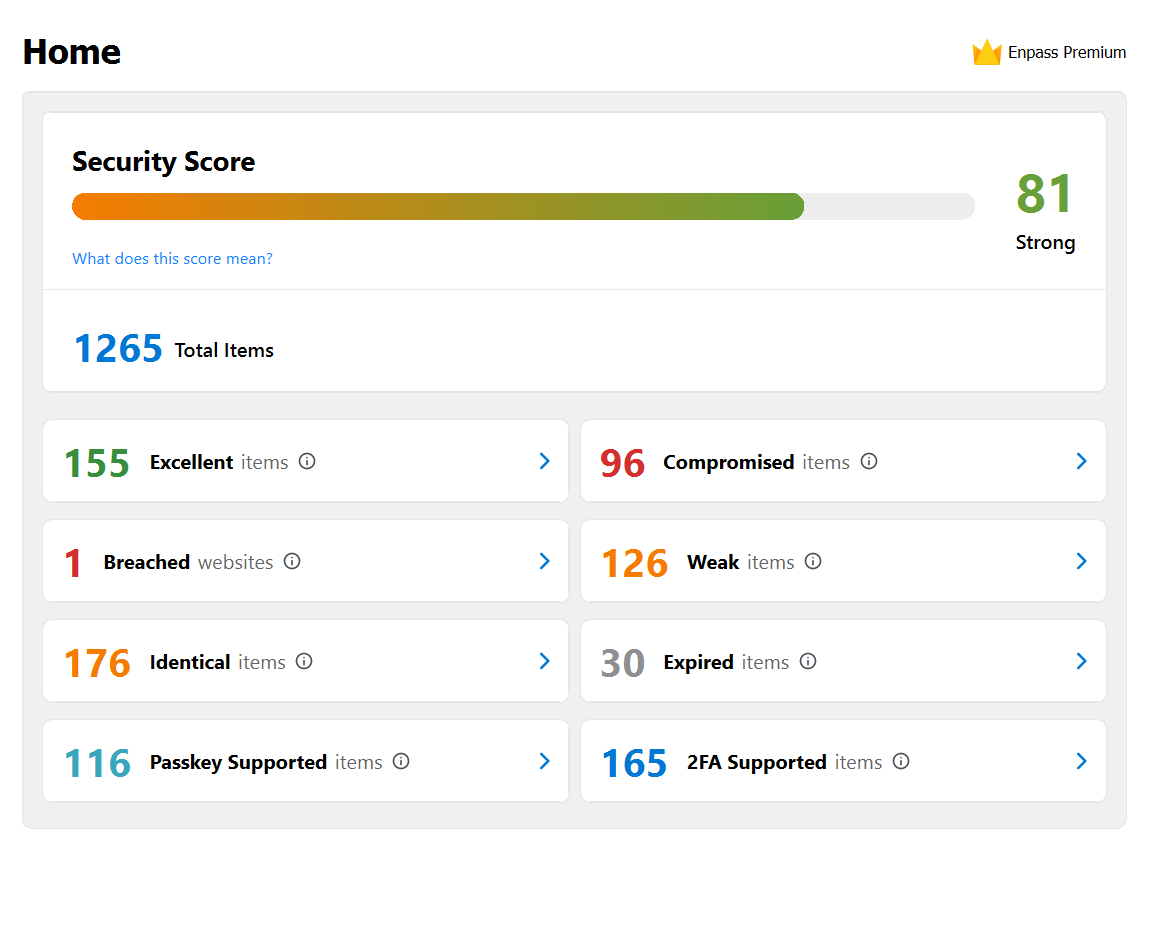
When you launch the Enpass desktop app, or select Home in the mobile app, It displays a comprehensive view of your password health and security status.
The dashboard is organized into two key sections:
Recommended Actions – Guided steps to help you complete setup and improve your overall security.
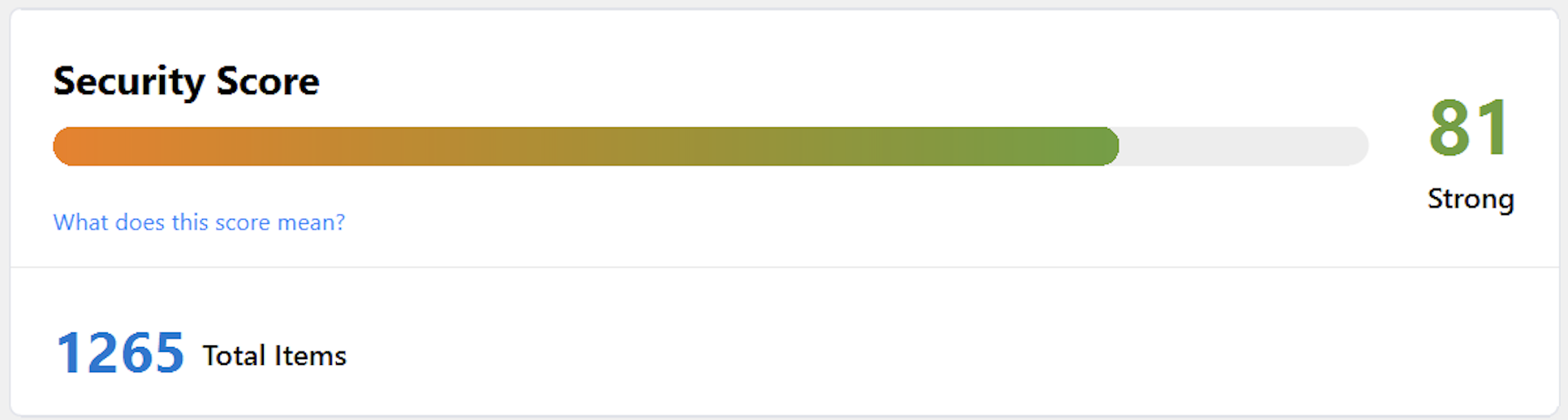
Security Score – A visual summary of your vault security (0-100) with clear, actionable insights across multiple categories.
Recommended Actions
The Recommended Actions section guides you through essential setup steps to maximize your Enpass security. These action cards appear in a specific sequence and disappear once completed:
Available Actions
- Add Item – Add passwords to your vault (disappears after 10 items are added)
- Import Items – Import your existing passwords from other sources (disappears after 10 items are imported or import is completed once)
- Install Browser Extension – Enable seamless autofill in your browser (disappears once installed)
- Biometric Unlock – Set up Windows Hello (Windows) or Touch ID (macOS) for quick, secure access (disappears once enabled)
- Enable Compromised Passwords Check – Turn on monitoring for passwords found in known data breaches (appears only after at least one other action is completed)
Once you complete all recommended actions, this section will no longer appear.
Security Score
Your Security Score is a comprehensive measure of your vault's password health, displayed as a score from 0-100 with a visual meter and descriptive label (Very strong / Strong / Fair/Low).
The Security Score section includes counts of...
- Items with excellent, compromised, identical, weak, or expired passwords
- Items that need to be secured because of recent website breaches
- Items that could be upgraded to authentication-code (2FA) security
- Items that could be upgraded to passkey security
- Items that don't comply with organization password policies (Bussines users only)
Selecting any of these counts will take you to a filtered list of matching Items.
The Security Score reflects data from your currently selected vaults only and may not include all vaults.
Security Score Categories
Excellent passwords
These passwords are strong and meet security best practices. This category shows the count of items with robust, secure passwords in your vault.
Compromised passwords
These passwords match those found in known data breaches, which makes them unsafe. Even if they seem like strong passwords, they should be changed.
Note: The Compromised Passwords check is optional and disabled by default. This category will only appear when you enable the compromised passwords check feature
Read more about how Enpass checks for compromised passwords
Weak passwords
These passwords are unsafe because they are either not complex enough to be strong (too short, too little variation in the characters they contain, etc.) or they contain what seem like personal information that could be found online or easily guessed (significant dates, personal or pet names, hobbies, etc.) by anyone seeking to access your accounts.
If you have 0 weak passwords, this tile will be highlighted in green.
Read more about how Enpass checks for weak passwords
Identical passwords
These passwords are unsafe because if one account gets compromised, all the other accounts with the same password are at risk.
If you have 0 identical passwords, this tile will be highlighted in green.
Note: When viewing all vaults together (for users with both business and personal vaults), the identical passwords category may not be displayed.
Expired passwords
These are passwords listed with expiry dates in your Enpass items (usually for sites that require passwords be changed on a regular basis), and those dates have passed.
Read more about customizing password fields
Rule-violating passwords (Bussiness lisense only)
For business users, this category displays items with passwords that don't comply with your organization's password policy. This helps ensure all team members follow company security standards.
Breach monitoring
Enpass notifies you whenever a data breach has been reported for any sites, apps, or services saved in your Enpass items. All compromised Items remain on the breach report page until their passwords are changed.
If you have 0 breached items, this tile will be highlighted in green.
Read more about Breach Monitoring
Two-factor authentication (2FA)
Using one-time authentication codes provides an additional layer of security for your accounts. All Items that could be upgraded to authentication-code security will appear on this list.
Note: For B2B users, this category may be controlled by administrator settings.
Read more about generating authentication codes in Enpass
Passkeys
Stronger, easier, and safer than passwords, passkeys provide the best security for your accounts. All Items that could be upgraded to passkey security will appear on this list.
For B2B users, this category may be controlled by administrator settings.